Restore the factory settings of your camera
Via the web interface of your camera
If you still have access to your camera via your web browser, you can use the Web interface to reset your camera.
The camera will not be able to dial into your Wi-Fi network anymore as it lacks the WiFi key. Also, you will probably no longer have the old IP address, but automatically obtain a new one from your router as soon as you connect the camera via LAN cable. After that a new first installation is necessary. Details can be found here: Installation Wizard.
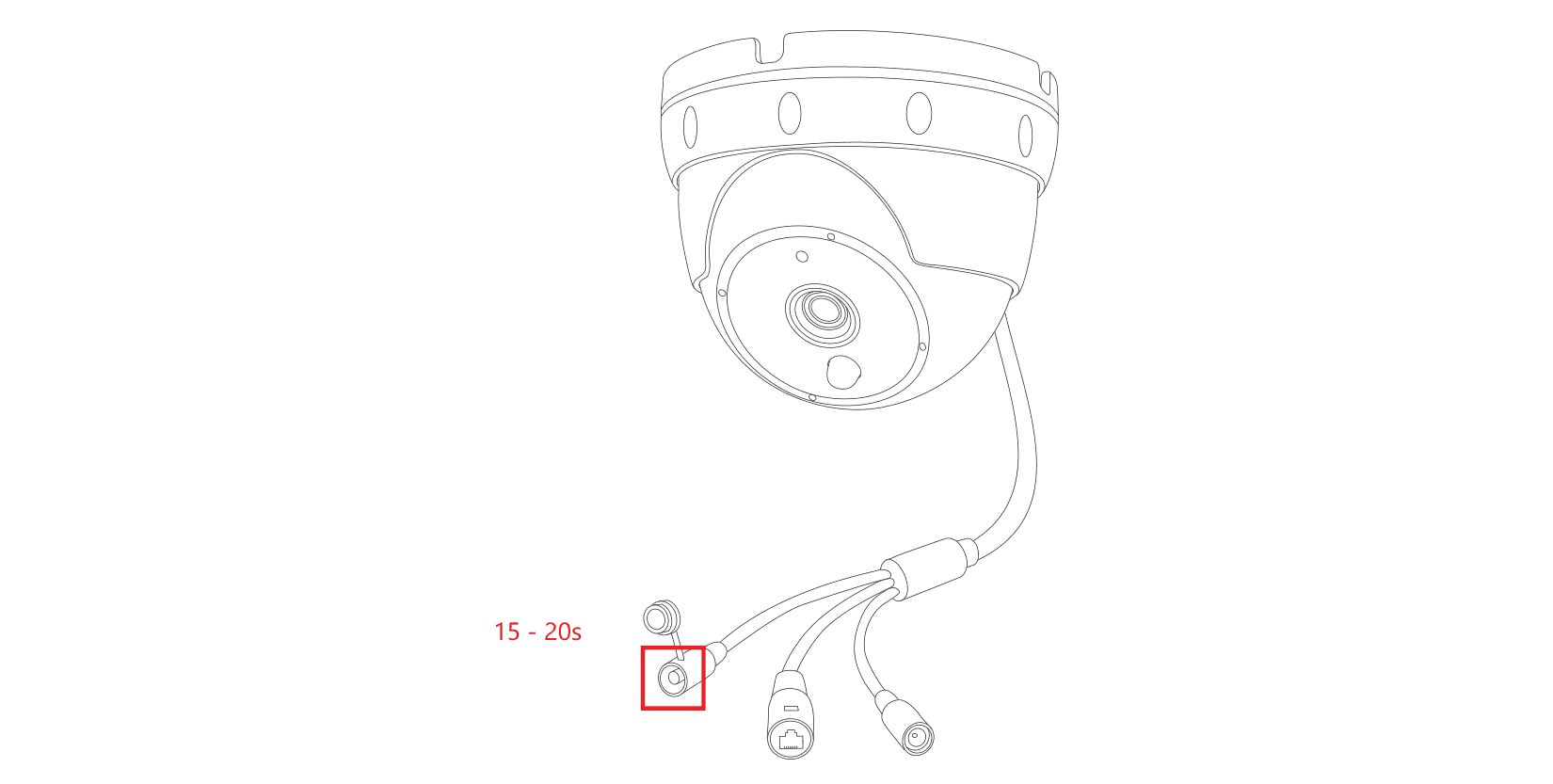
Via the hardware reset button
To reset, press and hold the reset button for 20 seconds (see below) while the camera is powered from the AC adapter and the LAN cable is removed.
- After 3s: Turn the Status LEDs on and start the Wireless-Protected-Setup or WPS mode that allows you to add your camera to your local WiFi.
- After 15s: Let the Status LEDs flash slowly and after releasing the button reset all your camera settings except the network configuration.
- After 20s: Let the Status LEDs flash fast and after releasing the button reset ALL your camera settings.
- After 30s: Turn the Status LEDs off and roll back your camera to the state it had before the last Firmware update and restart your camera.
WLAN integration after the reset
wps : To reconnect the camera to your Wi-Fi network after rebooting, you can create a file called wps (very important without file extension!) - it's not that easy on Windows, so we have the necessary file here for download provided. The file is packed and must first be freed from the zip container before we can use it. Place this file in the root directory (ie directly on the card, not in a subfolder) of the memory card and then insert it back into the card slot of your camera. Then start the WPS mode of your WLAN router and restart the camera. After restarting, the camera will be in WPS mode and will try to connect to your router.