OpenHAB MQTT Auto-Discovery
Your INSTAR 2K+/ WQHD 4K/UHD camera now supports Home Assistant MQTT Auto-Discovery, which is also supported by OpenHAB.
In principle, you could simply follow the Home Assistant instructions linked above – however, the device class is not yet supported at this time:
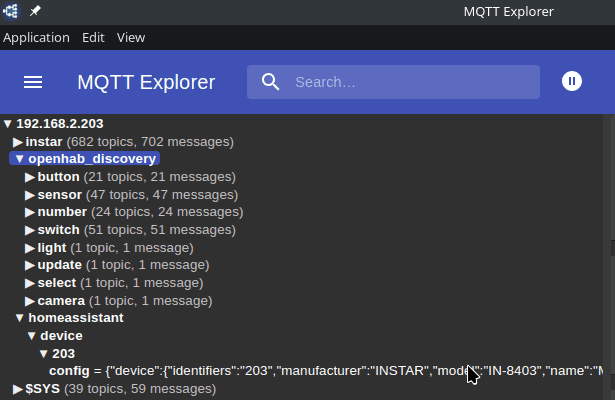
As you can see in the screenshot, in the case of Home Assistant, a ‘device’ is registered and this then brings with it a configuration for all subordinate functions of the device.
As soon as this is supported by OpenHAB, all you have to do is match the discovery prefix (see Home Assistant MQTT Auto-Discovery) with what you use in OpenHAB.
Until then, we provide the individual functions of the camera via the ‘Discovery Prefix’ openhab_discovery. So you can simply add a new entity, e.g. a button, via MQTT with the corresponding topic.
MQTT Broker
If you have already configured an MQTT broker in OpenHAB, you can simply connect the camera to it and skip to the next step.
If you do not yet have a broker, you can use the camera itself as a broker. In OpenHAB, you first need the MQTT binding for this:
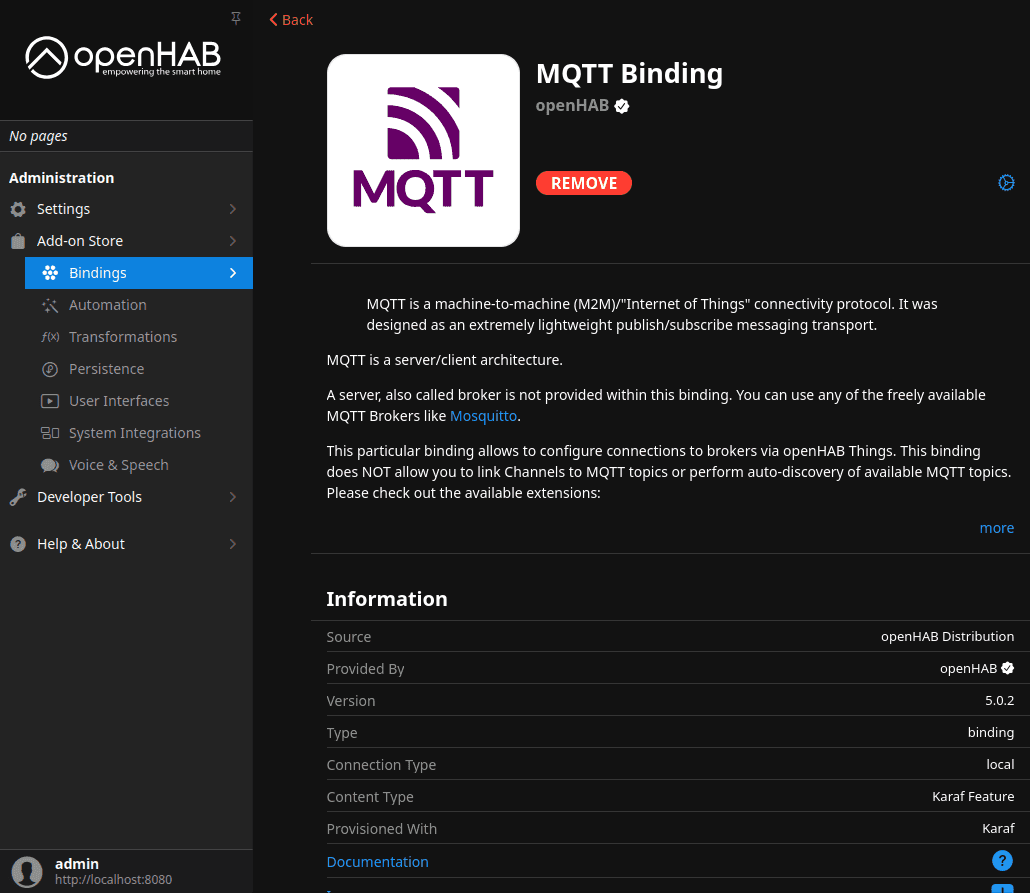
After installation, go to the binding configuration page:
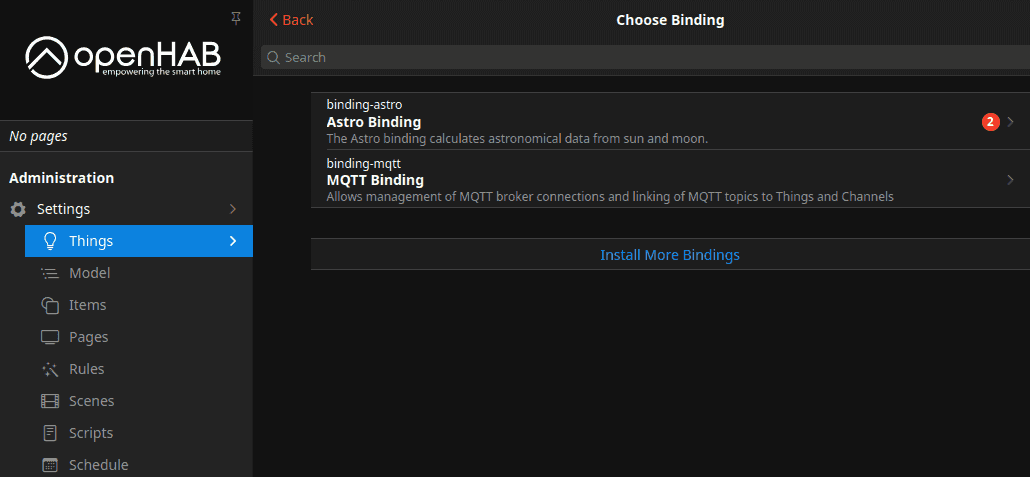
And first select MQTT Broker to add the camera as a broker:
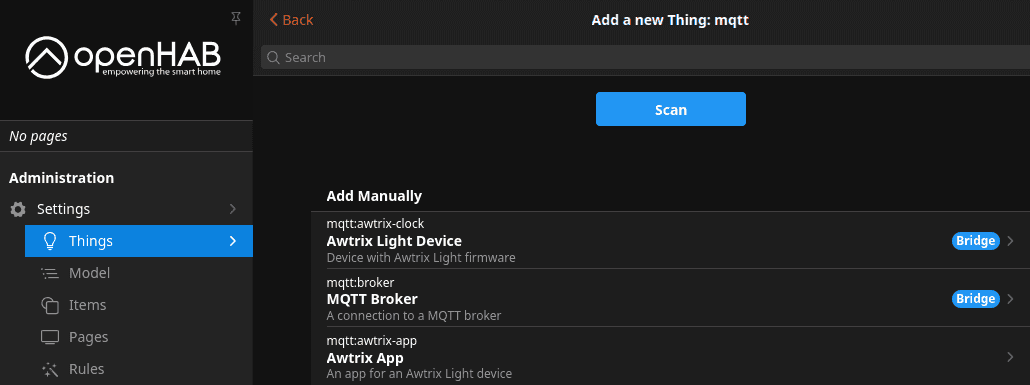
At this point, you should ensure that the MQTT service is active in the camera and that the camera is configured as an MQTT broker:
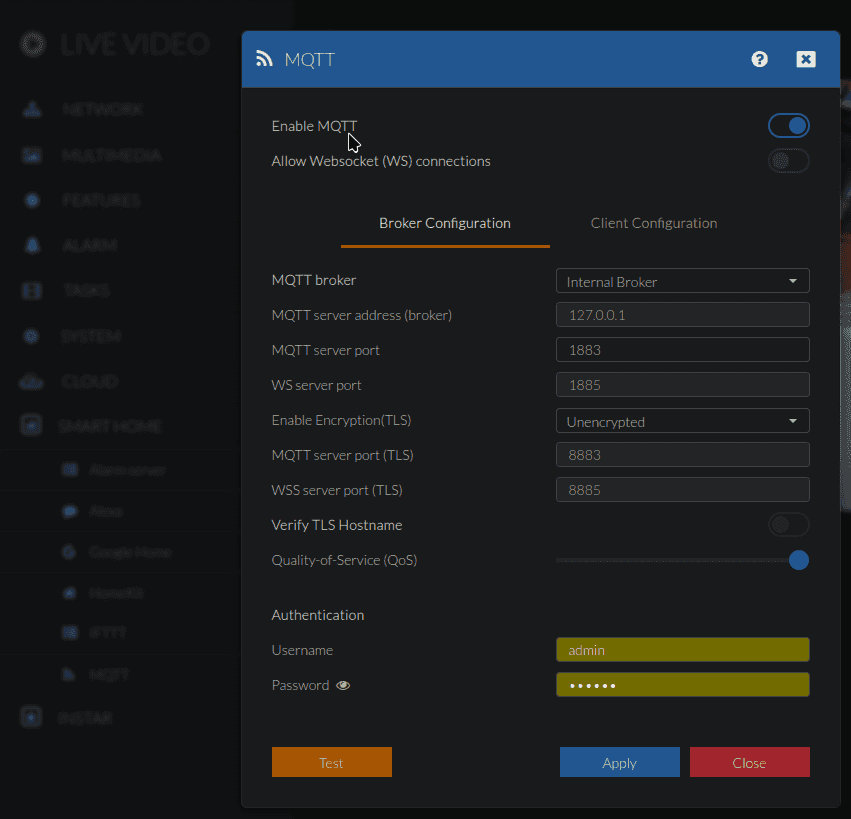
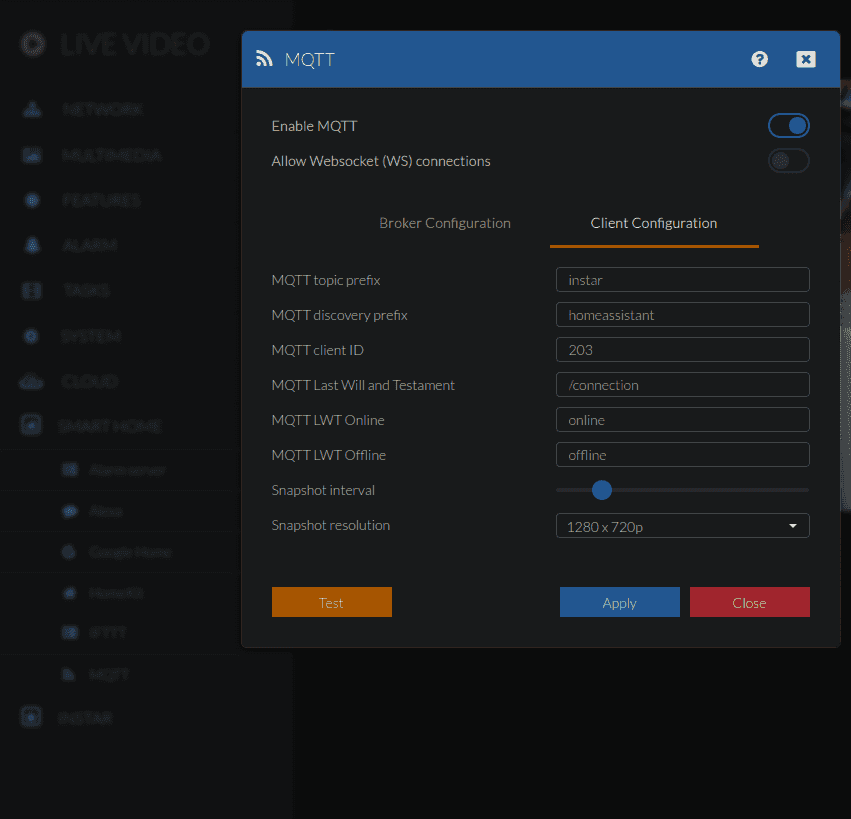
Back in OpenHAB, you can now store the relevant data:
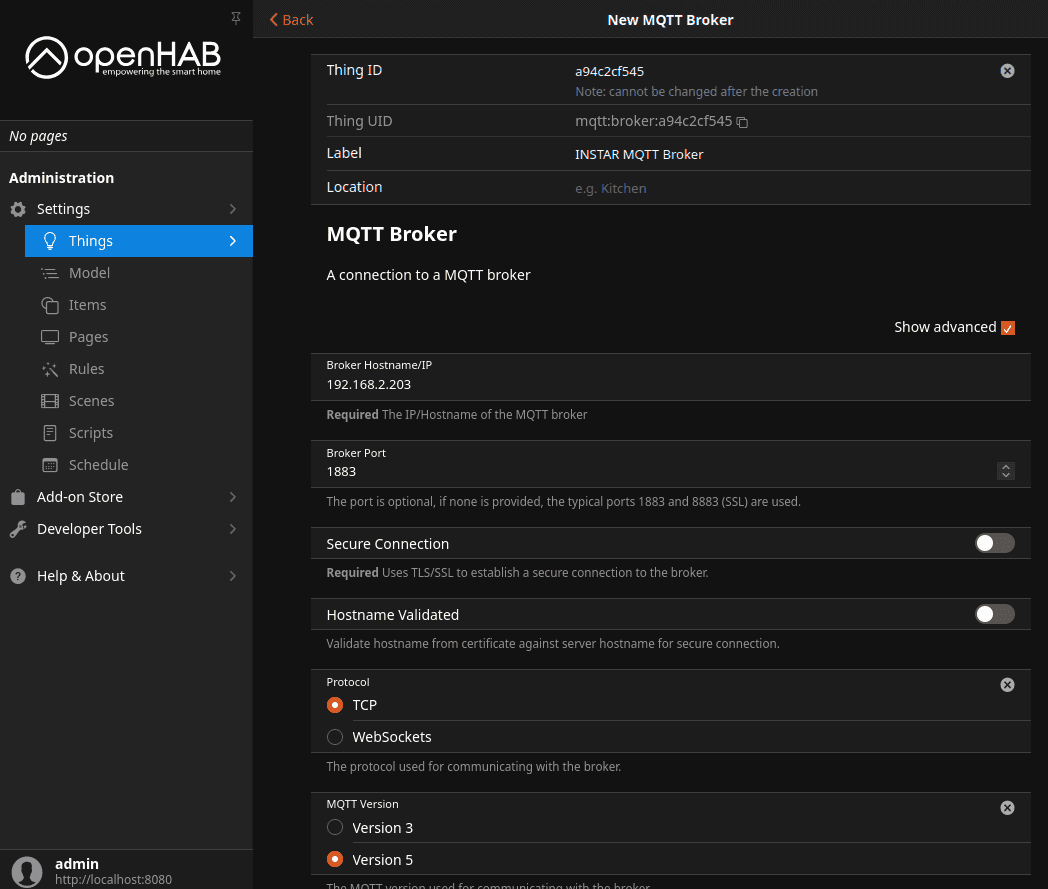
The broker IP is the IP address of the camera and the port – unless adjusted in the camera – is 1883.
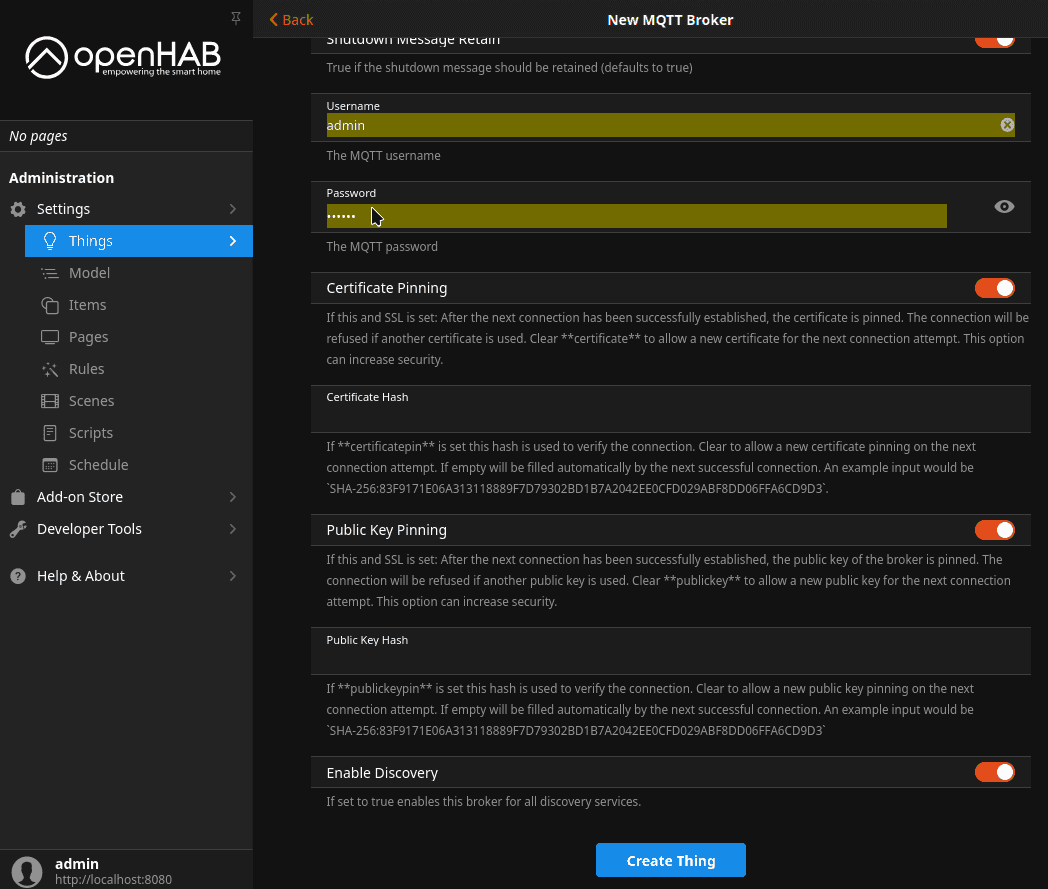
The login here is the login that you entered during the MQTT broker configuration in the camera (not the camera login!).
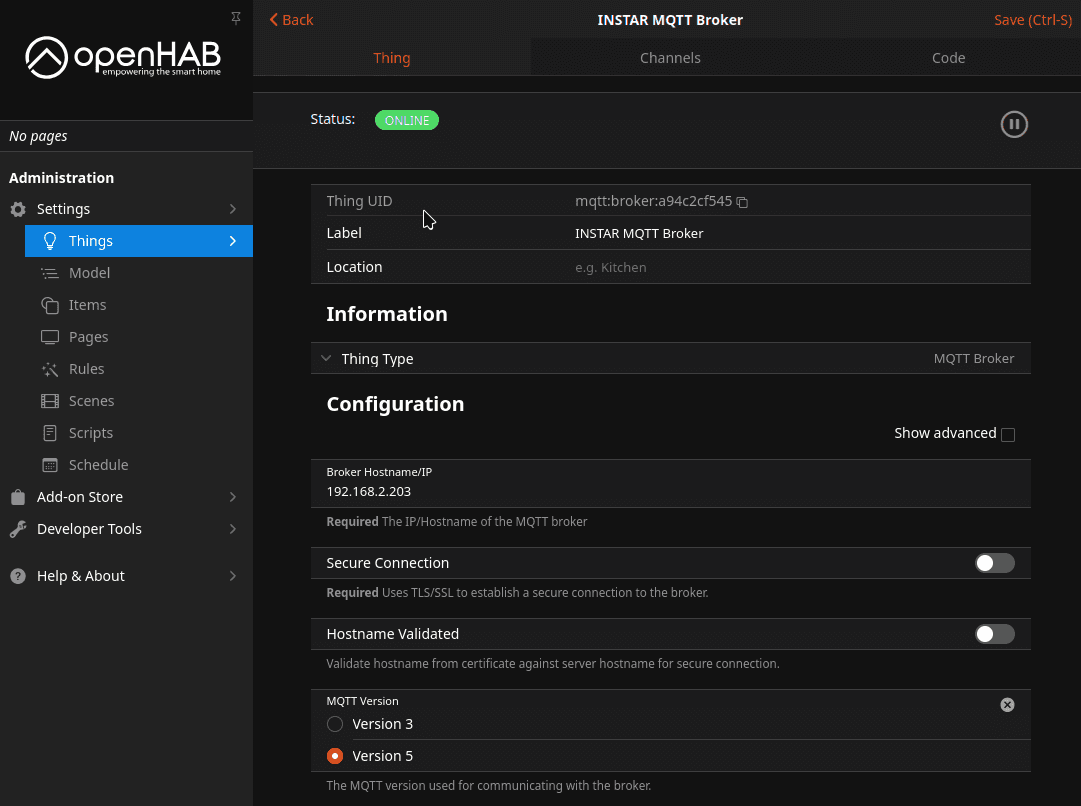
Once you have saved the settings, the broker is connected:
Adding the camera
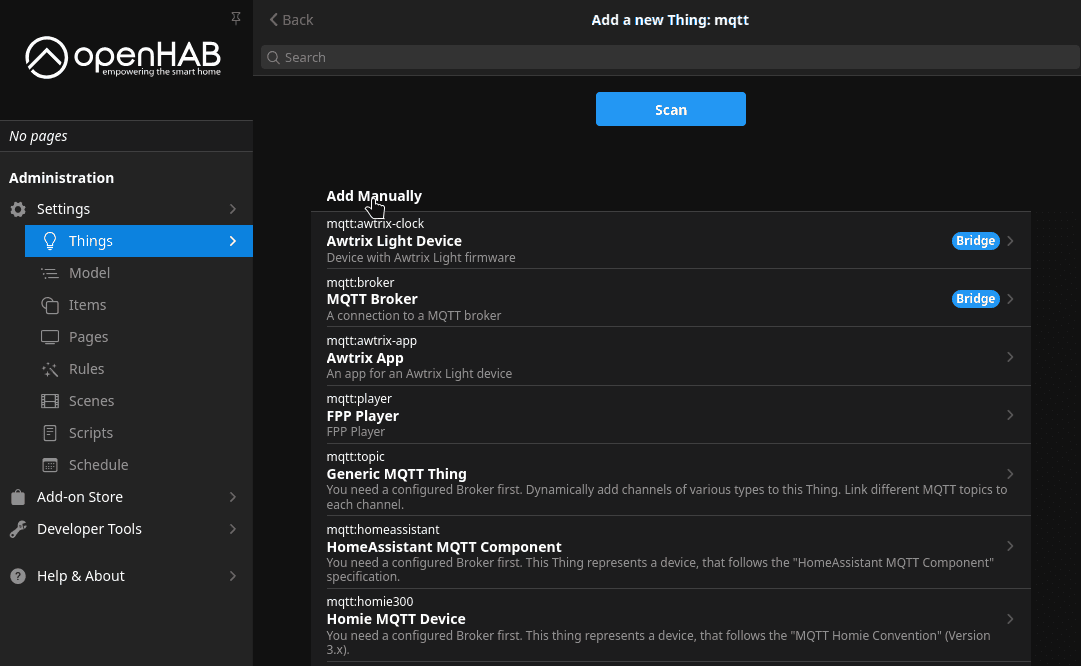
Back in the MQTT binding configuration, we now need to add a ‘Home Assistant MQTT component’. This requires the existing MQTT broker:
As described above, unfortunately, it is not possible (at present) to use the device classes provided under the Home Assistant Discovery Topic homeassistant. Therefore, we use the openhab_discovery prefix and a range of camera functions that are accessible via this prefix:
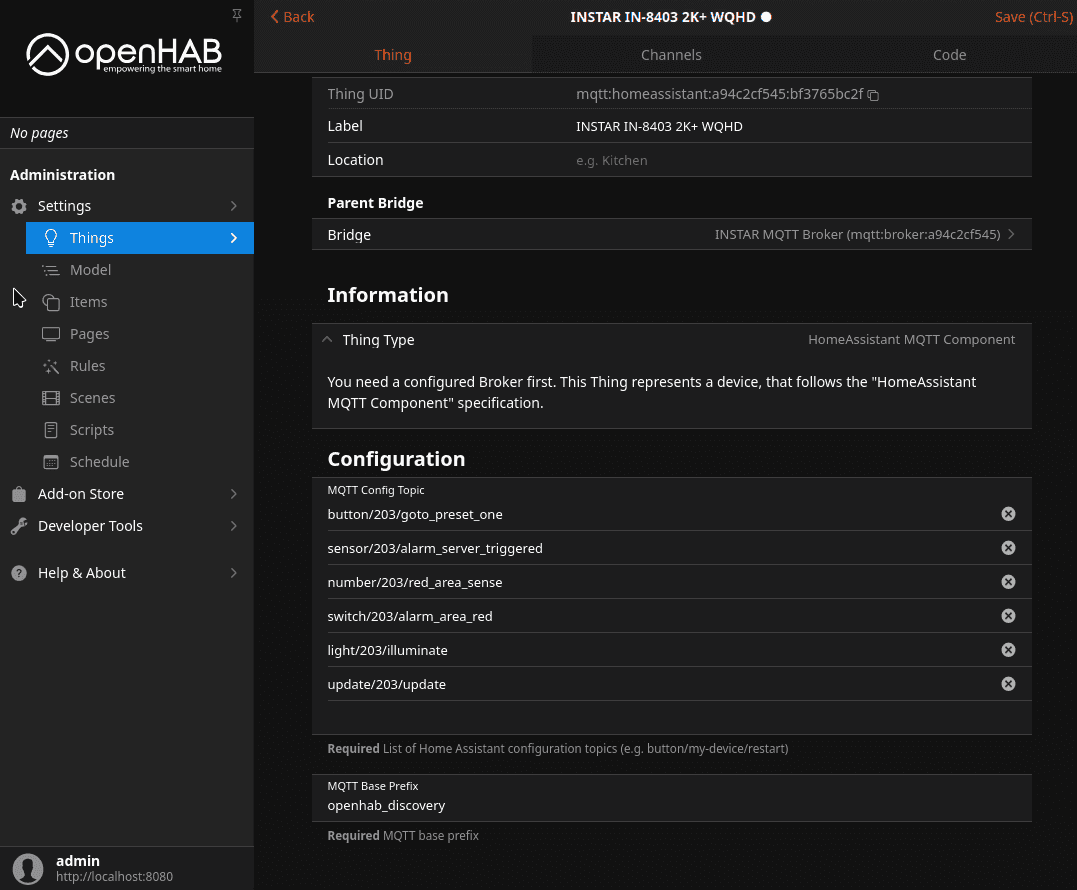
Make sure that you select the MQTT broker to which the camera is connected (or which it provides itself) as the ‘Parent Bridge’. The ‘MQTT base prefix’ is openhab_discovery and the configuration topics must be entered WITHOUT the /config ending!
Example
You want to insert a button that moves the camera to the saved position 1.
To find the relevant topic, you can use the MQTT Explorer, for example:
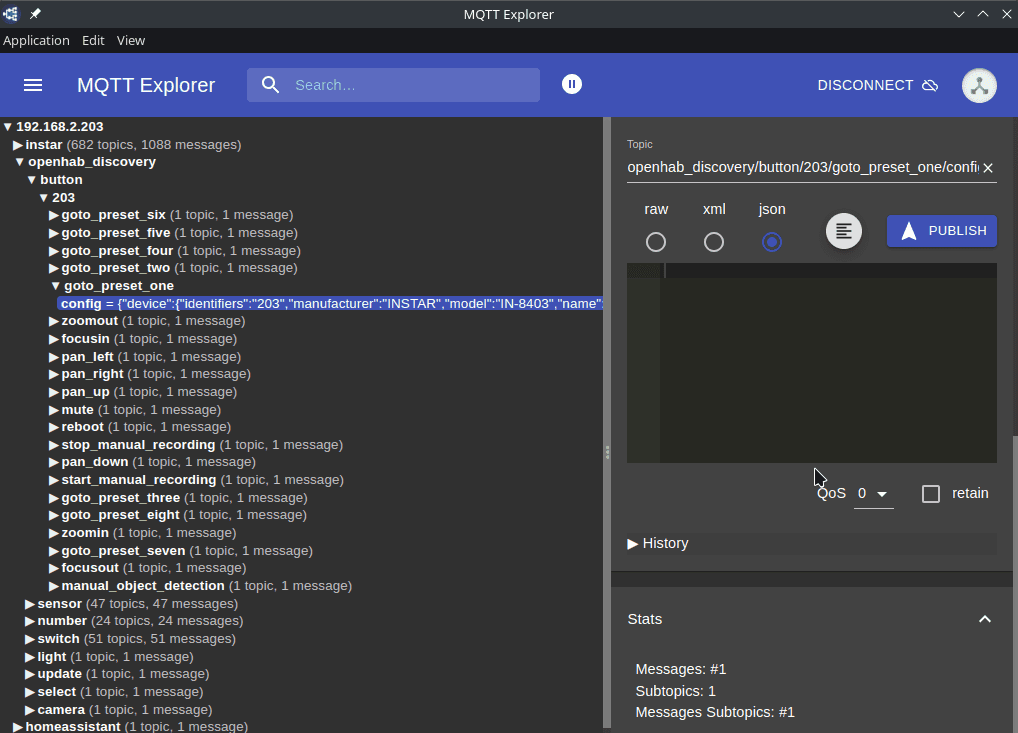
The required topic is therefore:
openhab_discovery/button/203/goto_preset_one/config
Of these, you only need the button/203/goto_preset_one part in the list of MQTT topics:
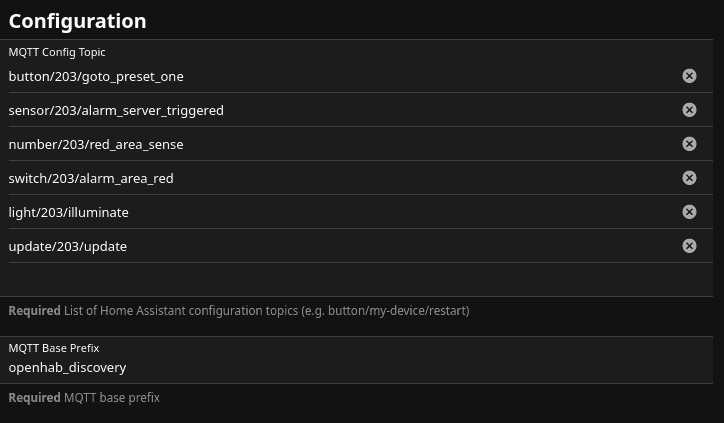
You can now freely use the existing topics and add whatever you need.
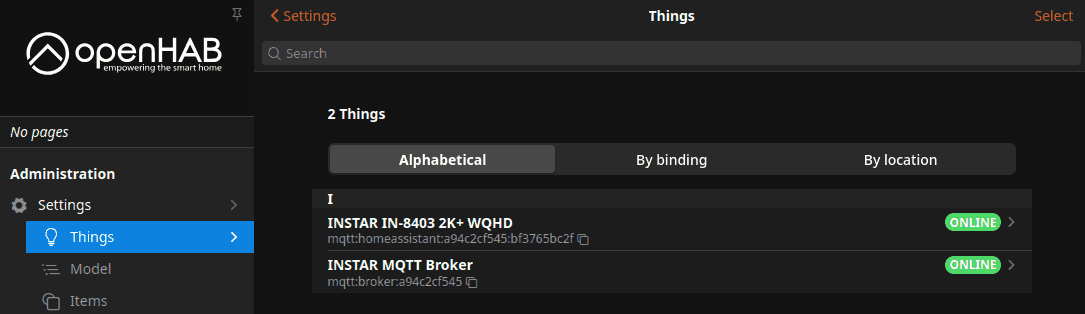
After saving, both the MQTT broker and the camera (as a Home Assistant component) are now added to OpenHAB:
Using the camera
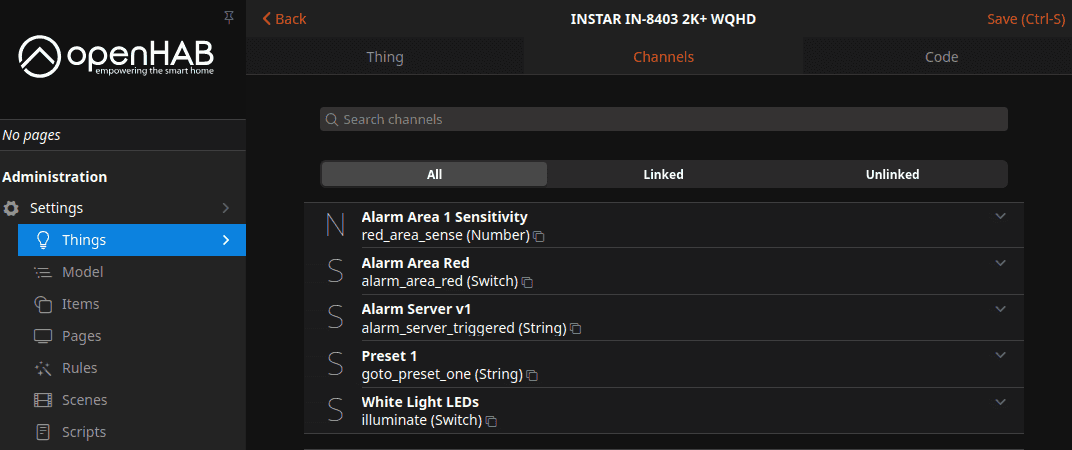
In the added camera (as a Home Assistant MQTT component), all functions that were added during configuration are then available as channels:
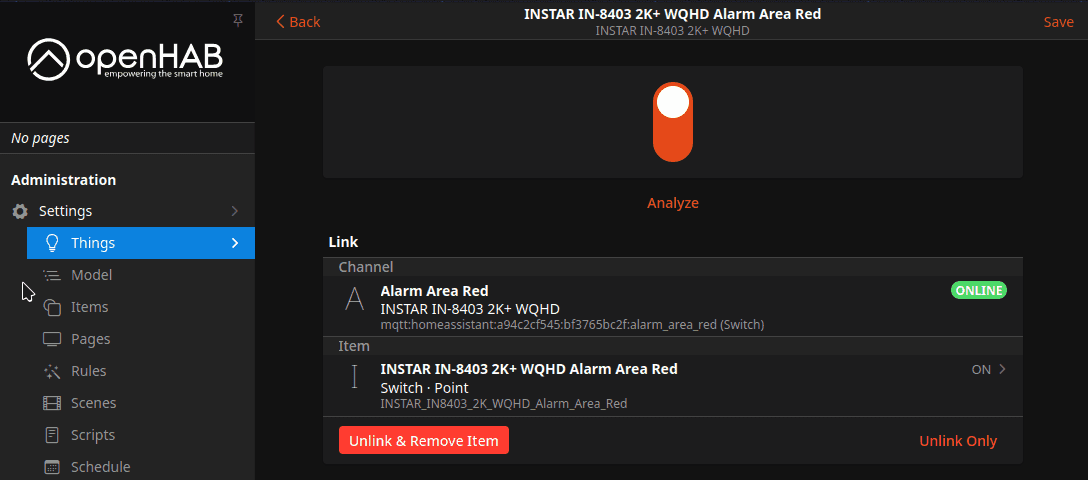
These can then be linked to ‘items’:
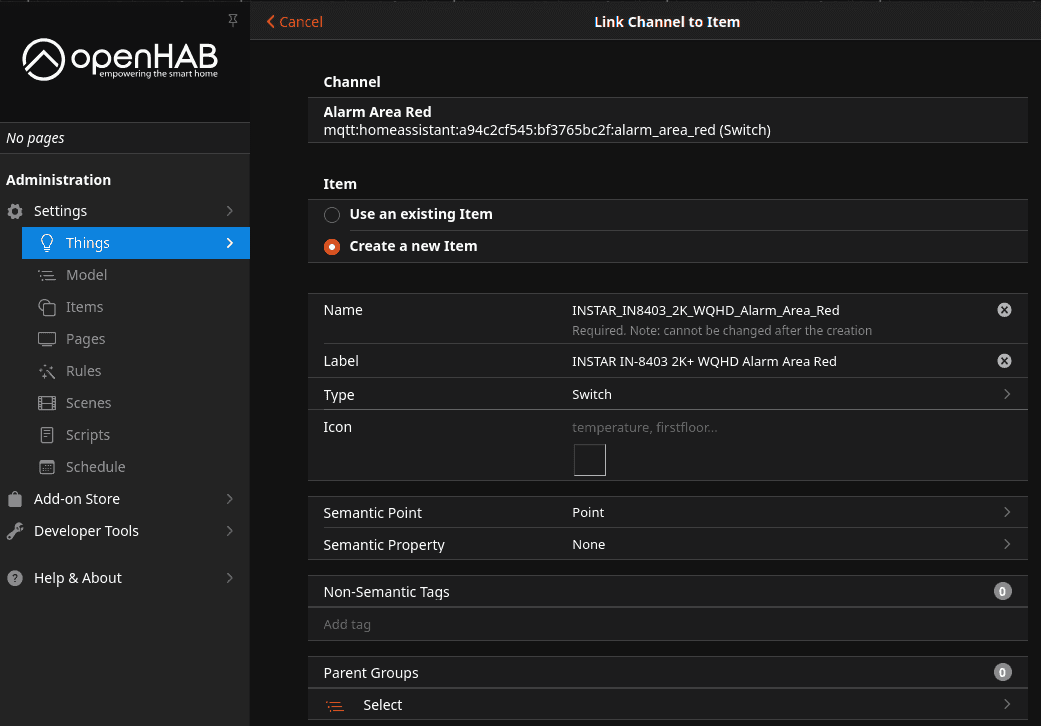
They are then available for use as buttons in the OpenHAB interface: